
aCalendar+ Calendar & Tasks
Tapir Apps GmbHProductivity
4.82.30K Reviews
- Version
- 2.9.5
- Installs
- 500.00K
- Age Rating
- Everyone
Screenshots
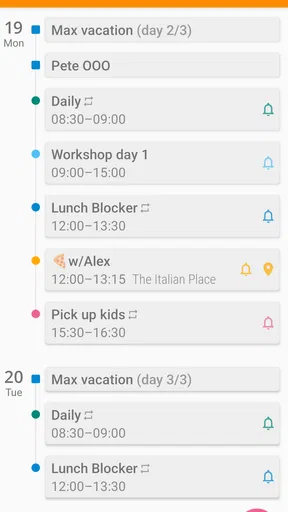
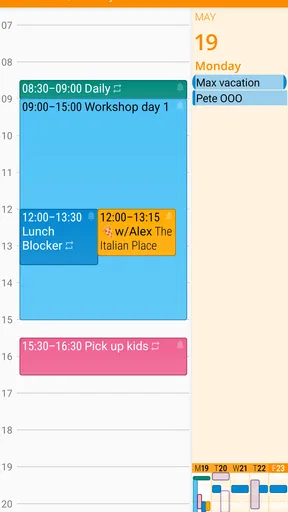
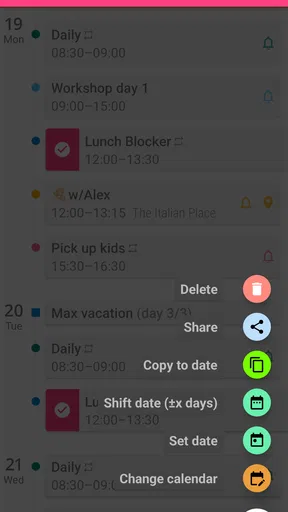
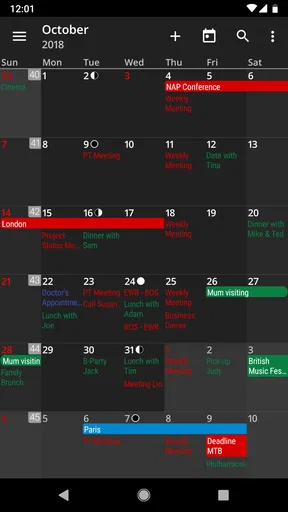
Our Review of aCalendar+ Calendar & Tasks
 Analysis by Appyee
I find calendar apps tend to cause the most frustration at the moment you need them: an event appears missing, a reminder seems late, or a busy week is too crowded to scan. That is why I judge aCalendar+ Calendar & Tasks less by how many buttons it offers and more by whether I can understand my day quickly and recover when something looks wrong. It is a paid productivity app from Tapir Apps GmbH, priced at $11.99, and its approach suits people who want appointments and untimed to-dos close together rather than scattered across separate tools.
When an event seems to disappear
Before recreating a missing appointment, I would check the selected calendar and the current view. A calendar can be hidden or simply hard to spot among several colors, while a month view may show less detail than a day or week view. Switching views and reviewing the calendar selection is a sensible first check; adding a duplicate event before doing that can leave you with two reminders for the same commitment.
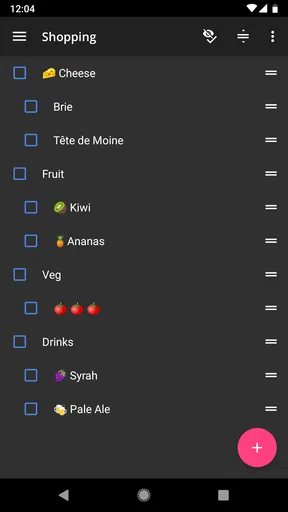
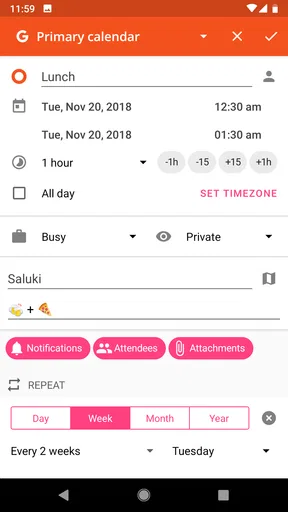
I also find it useful to distinguish an event from a task before entering it. A meeting with a start time belongs on the calendar at a specific time, while a small errand that can be done whenever may be easier to manage as a task. That simple choice keeps a day view from filling with items that do not actually have fixed appointments.
Getting the calendar ready for real life
My setup advice is to start with the calendars you already use, then check that the events you expect are visible before relying on the app for an important day. The app’s calendar syncing can spare you from re-entering a schedule, but a quick look through upcoming events is still worthwhile after setup. If a particular event is absent, I would check whether it belongs to a calendar that is currently selected rather than immediately typing it in again.
Colors are most useful when they answer a real question at a glance. I would give work, home, and family events distinct, easy-to-recognize colors, then resist creating a different color for every small variation. Too many similar shades can make a calendar harder to read instead of clearer. The goal is not decoration; it is being able to tell what kind of commitment is coming up without opening every entry.
The app is rated for Everyone, and its current version is 2.9.5, with Android 5.0 as the minimum operating-system requirement. It has been available since March 31, 2012, and has a 4.8 average from around 40,000 ratings, with about 2,300 written reviews and over 500,000 installs. Those figures suggest a well-established calendar, but they do not replace checking that its layout and workflow suit the way you plan.
Using it without adding more planning work
I use this section to focus on keeping a calendar helpful without turning planning itself into another chore. A small routine—reviewing fixed appointments first, then deciding which flexible tasks truly need a time—can make the week easier to scan and simpler to adjust when plans change.
A routine that keeps tasks from crowding the day
For an ordinary weekday, I would use the week view to see fixed commitments, then keep flexible chores as tasks instead of giving each one an artificial appointment time. For example, if I have a morning meeting, a school pickup, and a grocery run, the meeting and pickup need clear places on the calendar; the grocery run may be a task unless I have arranged a specific time with someone. This gives me a more honest picture of what is fixed and what can move.
There is a useful trade-off here: putting everything into one calendar view can make the app feel convenient, but it can also make the day look more packed than it is. I would avoid turning every reminder into a timed event just to make it visible. Keeping the two kinds of planning separate makes it easier to spot genuine scheduling conflicts and leaves room to shift flexible work when the day changes.
Small habits that make the interface more useful
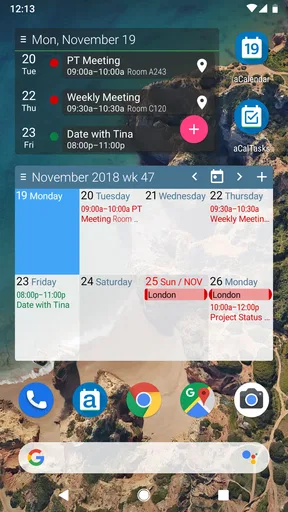
Widgets are particularly helpful when I want a quick glance without opening the app. I would choose one that shows enough of the upcoming schedule to answer the question I actually have—what is next, or what does today look like? A crowded widget can become visual noise, so I would treat the home screen as a quick reference and open the full app when I need to inspect details or move between dates.
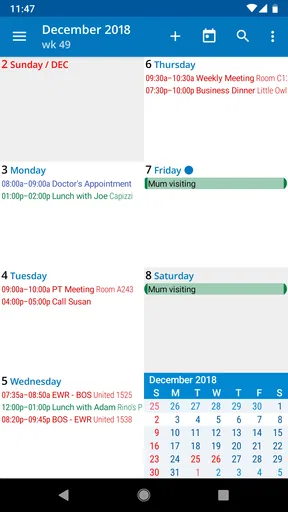
Likewise, the day, week, and month views serve different jobs. I use the month view to notice busy stretches and distant dates, the week view to balance commitments, and the day view when I need to focus on the order of events. Swiping between them is handy, but it is worth pausing to confirm which span is on screen before editing; changing an event while looking at the wrong day is an avoidable way to create confusion.
Contact birthdays and anniversaries can help with a different kind of planning: remembering people, not just appointments. I would review those dates alongside my other commitments and use them as prompts to prepare a message or make plans in advance. If a birthday does not show up, checking the relevant contact information and calendar visibility is a better first move than entering a second birthday event immediately.
Where troubleshooting should start
If something looks out of date, I would first check whether the event is present in the calendar I expect and whether that calendar is visible in the current view. Then I would give syncing a moment and compare the schedule with the calendar service I normally use. This order helps separate a display or selection issue from a genuinely missing entry, without creating duplicates as a side effect.
If an event appears at an unexpected time, I would check its details and the date shown in the view before changing it. A calendar entry can look misplaced when I have navigated to the wrong day or when I am comparing different calendar displays. For an important appointment, confirming the final time against the source where it was arranged is a practical safeguard, especially before deleting or moving an entry.
When a different tool may fit better
Compared with a basic calendar that focuses mainly on appointments, aCalendar+ gives more attention to switching among day, week, and month views, using colors, and keeping tasks alongside events. That can be a better fit if you regularly move between a broad monthly plan and the details of today. A simpler calendar may be preferable if you only add occasional appointments and would rather have fewer choices to configure.
It is also not automatically a replacement for every task manager. If your to-do system depends on a specialized workflow, extensive project organization, or features beyond simple task tracking, a dedicated task app may serve you better. I would use this app for everyday personal planning and choose a separate tool when work requires a more structured way to manage projects. The practical question is whether keeping dates and flexible tasks together saves you effort or makes the screen feel busier.
The purchase price matters in that comparison. At $11.99, I would want to use the app’s calendar views, customization, widgets, and task handling often enough to justify paying for a dedicated calendar. Someone who is satisfied with a basic calendar and rarely changes views may not notice enough difference to make the purchase worthwhile. On the other hand, if quickly scanning a mixed personal and work week is part of your daily routine, the extra control may be meaningful.
First Impressions and Setup
Right off the bat, the installation was a breeze. I mean, who doesn’t love an app that doesn't make you jump through hoops just to get started? Once I opened it, I was greeted with a clean, intuitive interface. It’s like the app knew I didn't have time to waste figuring things out.
Setting up my calendar was surprisingly simple. The app synced effortlessly with my Google Calendar, pulling in all my existing events. I didn’t have to worry about manually entering everything, which was a huge relief. Plus, it supports other calendars too, so you’re not left out if you’re using something else.
Features That Stand Out
This app isn’t just about throwing dates at you. It’s about organizing your life in a way that makes sense. The task management feature is a game-changer. You can create tasks separately from events, which is great for keeping track of those to-dos that don’t necessarily have a specific time slot.
Speaking of events, the color-coding option is a lifesaver. I started assigning different colors to work, personal, and family events, and it made everything so much clearer at a glance. It’s funny how a splash of color can make a difference.
Another nifty feature is the widget support. I’m a sucker for widgets, and having my schedule right on the home screen saves me from having to dive into the app every time I need to check something.
Digging Deeper: Customization and Usability
The customization options in aCalendar+ Calendar & Tasks are impressive. You can tweak the look and feel to suit your style, from the theme to the font size. I went for a dark theme, not just because it looks cool, but it’s easier on the eyes, especially at night.
Navigation is intuitive. The swipe gestures between day, week, and month views are smooth. It’s like flipping through a book, and who doesn’t love a good page-turner? Plus, adding events or tasks is just a tap away. No fuss, no mess.
Now, one thing that really caught my attention was the birthday and anniversary feature. It pulls in contacts' birthdays, ensuring I never forget to send a card or a quick message. It’s these little things that make the app feel personal.
Performance and Reliability
In terms of performance, I’ve had zero issues. The app runs smoothly, with no crashes or glitches. It’s reliable, which, let’s face it, is crucial for an app that’s supposed to keep your life on track.
Even with a plethora of events and tasks, the app doesn’t slow down. It’s like having a trusty assistant that doesn’t complain about your workload. Just what I needed!
Final Thoughts
So, after spending some quality time with aCalendar+ Calendar & Tasks, I can say it’s definitely worth having on your phone. It’s not just about keeping appointments; it’s about making life more manageable. Whether you’re a busy professional or someone who just wants to keep their life organized, this app has something to offer.
So, if you’re looking for a tool to help you stay on top of your schedule, give aCalendar+ Calendar & Tasks a try. You might just find yourself wondering how you ever managed without it. Happy organizing!
Verdict
Strengths of aCalendar+ Calendar & Tasks
- Intuitive interface for easy navigation.
- Syncs seamlessly with Google Calendar.
- Customizable widgets for quick access.
- Multiple themes to suit personal style.
- Task integration for comprehensive planning.
Limitations of aCalendar+ Calendar & Tasks
- Limited free version features.
- Occasional sync delays reported.
- Can be resource-intensive on older devices.
- In-app purchases for full functionality.
- No weather integration available.
Similar Picks in This Category
View All
Google Calendar
Google LLC4.6

Google Drive
Google LLC4.3

Google Assistant
Google LLC3.9

Microsoft OneDrive
Microsoft Corporation4.6

Samsung Calendar
Samsung Electronics Co., Ltd.4.1

Microsoft OneNote: Save Notes
Microsoft Corporation4.6
Frequently Asked Questions
What features does aCalendar+ Calendar & Tasks offer?
aCalendar+ Calendar & Tasks provides a wide range of features including customizable calendar views, task management integration, and color-coded events. It also supports birthdays, anniversaries, and holidays, offering a seamless sync with Google Calendar. Users can enjoy a widget for quick access and a variety of themes to personalize their experience.
Is aCalendar+ Calendar & Tasks user-friendly for beginners?
Yes, aCalendar+ is designed with an intuitive interface that is easy to navigate. Beginners will appreciate the straightforward setup process and the clear display of events and tasks. The app offers helpful tutorials and guides to ensure users can quickly understand and utilize all its features effectively.
Does aCalendar+ Calendar & Tasks support synchronization with other devices?
Absolutely, aCalendar+ supports synchronization with Google Calendar, ensuring that your events and tasks are updated across all devices. This feature allows for seamless integration, so you can access your schedule from your smartphone, tablet, or computer without missing any appointments.
What are the privacy features in aCalendar+ Calendar & Tasks?
aCalendar+ is committed to user privacy and does not require an internet connection to function. Your data is stored locally on your device and the app does not track or share your information. Users have control over their data and can choose to back up or sync with Google services if desired.
Are there any additional costs after purchasing aCalendar+ Calendar & Tasks?
Once purchased, aCalendar+ Calendar & Tasks does not include any additional in-app purchases or subscription fees. You pay once for the app and receive all future updates for free. This makes it an economical choice for users who want a comprehensive calendar app without ongoing costs.
